Kwort is a minimalist and fast Linux distribution that combines simple and and useful applications to create a system for advanced users who finds a strong and effective desktop. Kwort phylosophy is about having a system running with the less amount of processes and take away all complexity as much as possible.
How is Kwort built?
Kwort is a Linux distribution based on CRUX; we make use of their port system to build a set of minimal packages. While Kwort use binary packages, we offer the users this port system as well. Looking for the best tools aligned to Kwort's phylosophy is an on-going task during the whole year.
Because of all this, Kwort is extremely simple and straight forward Linux system.
What we provide? Some of the Kwort's core features:
Simple, fast & efficient:
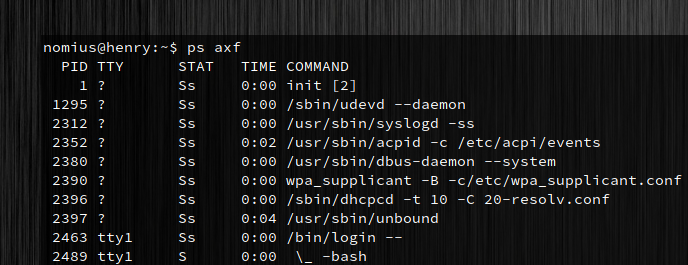
The less, the better: the user decides what to run; we don't start uneeded processes. Because of that, speed is built-in. Kwort can boot in less than 8 seconds to its full running GUI on any modern machine.
All you need:
Kwort's package manager (kpkg) makes software management easier. The CRUX port system & docker stack are also available. We also know that a lot happens on the web, so we provide the most regular tools and browsers.
Straightforward user experience:
Kwort's GUI combines Openbox and tint2 with a set of tools to have a simple and complete GUI which doesn't get in the users' way.
Per year release with regular updates:
Kwort full releases happends on yearly basis so our base stack and toolchain is updated regularly. Additionally, we release software security patches and bugfixes on daily/weekly basis.